How to Play Roblox on PC (2026 Ultimate Guide)
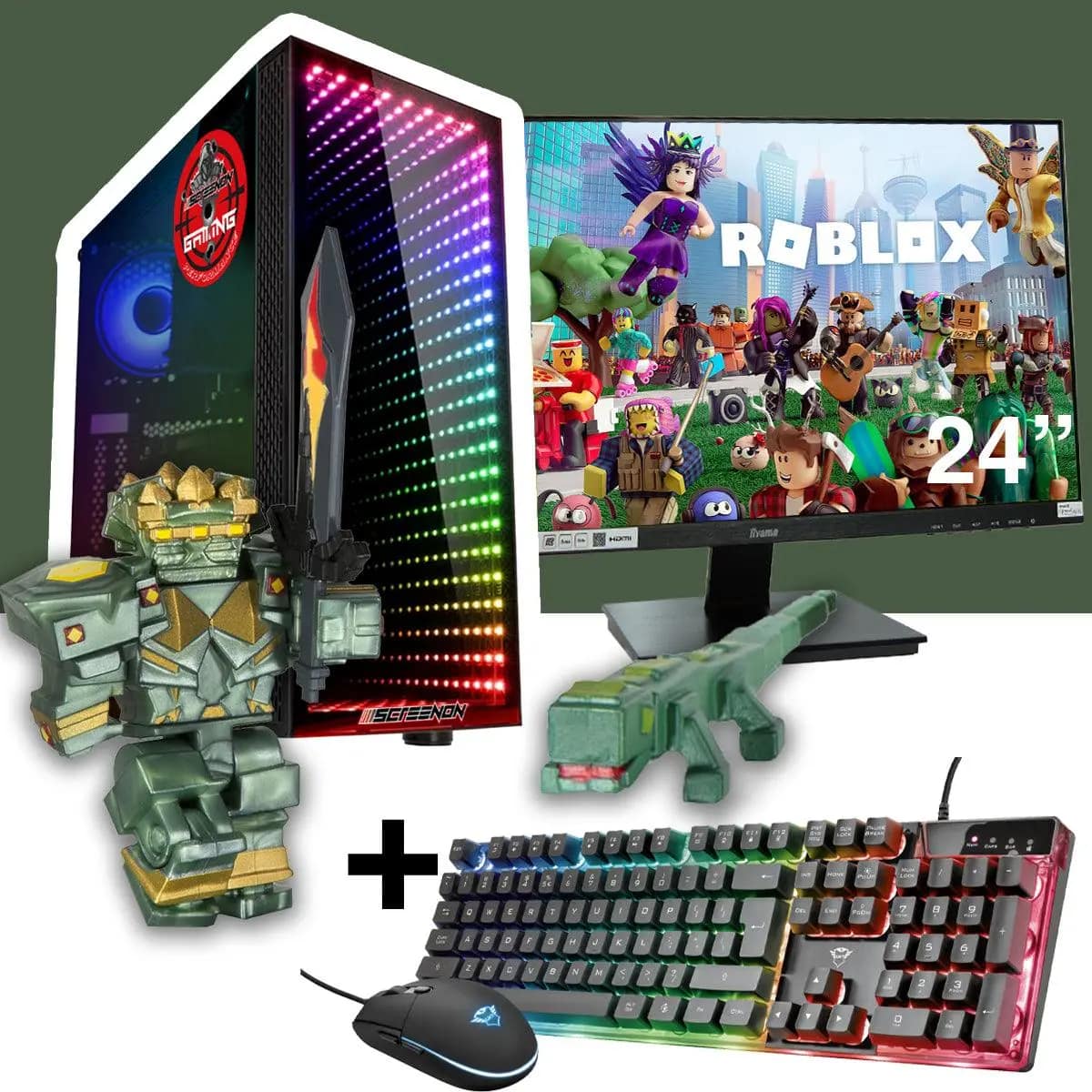
Experience Roblox like never before: Better graphics, smoother controls, and faster gameplay.
Are you tired of the small screen, battery drainage, and limited precision of your smartphone? You are not alone. Millions of Roblox enthusiasts are making the switch to PC to enjoy a superior gaming environment. Playing Roblox on a computer doesn’t just improve your visual experience; it provides the tactical advantage you need to dominate in complex games like Jailbreak, Blox Fruits, or Doors.
In this comprehensive 2026 guide, we will walk you through everything you need to know—from the initial download to advanced performance settings that will make your game run like butter.
1. Why Switch from Mobile to PC?
The difference between mobile gaming and PC gaming in Roblox is night and day. Here is why the upgrade is worth it:
- Precision Targeting: With a mouse, your aim becomes pixel-perfect. In games that require fast reflexes, this is a game-changer.
Keyboard Efficiency: Mobile controls can feel sluggish. Using WASD keys allows for complex maneuvers that are physically impossible on a touchscreen.
Visual Clarity: PC monitors offer higher resolutions, allowing you to spot enemies or hidden items from much further away.
Performance Stability: PC hardware is significantly more capable of handling heavy rendering, leading to fewer frame drops during intense action scenes.
2. Step-by-Step Installation Guide
Follow these steps to ensure a clean, secure installation of the Roblox client on your Windows PC.
Step 1: Secure Download
Always download Roblox from the official source. Avoid third-party “modded” installers, as these often contain malware that can steal your account credentials.
Navigate to the official Roblox website.
Log into your account or sign up if you are new.
Click on any game and press the Play button. A pop-up will appear prompting you to download the installer.
Step 2: The Installation Process
Once the RobloxPlayerLauncher.exe file is downloaded:
Locate the file in your “Downloads” folder.
Double-click the file to execute the installer.
Wait for the progress bar to finish. The client will automatically configure the necessary files for your system.
Step 3: Launch and Sync
After installation, the Roblox app will open automatically. Since your account is cloud-based, simply log in, and all your progress, purchased items, and inventory will be waiting for you.
3. Advanced Performance Settings for 2026
If you want to know how to play Roblox on PC (2026 ultimate guide) effectively, check these settings to optimize it:
Graphics Quality: If you experience stuttering, set this to “Manual” and lower it until the game feels smooth.
Full-Screen Mode: Press
Alt + Enterto switch to full-screen mode; this minimizes background processes and focuses your PC’s power on the game.Background Apps: Close Chrome, Discord, or other heavy applications before starting Roblox to free up RAM.
4. Mastering PC Controls: A Quick Cheat Sheet
If you are coming from mobile, the transition to keyboard controls takes practice. Here is your quick reference:
W, A, S, D: Movement.
Spacebar: Jump.
Shift: Sprint (in games that support it).
Number Keys (1-9): Inventory selection.
/ Key: Open the chat window.
5. Troubleshooting Common Issues
Sometimes, even the best setups face glitches. Here is how to fix them:
Roblox keeps crashing on startup
Solution: Update your GPU drivers. Most crashes on PC are caused by outdated graphics card drivers. Visit the NVIDIA or AMD website to download the latest updates.
"Lag despite good hardware"
Solution: Check your internet connection. Roblox is server-dependent, and a weak Wi-Fi signal can cause “rubber-banding,” even on a $2000 PC. Use an Ethernet cable for a stable connection.
6. Pro-Tips for Long-Term Players
Customize Your Shortcuts: Many games allow you to rebind keys in their respective settings menus. Customize your keys to match your comfort level.
Community Interaction: PC players have access to faster chat, making it easier to trade items or join squads. Use this to your advantage to build a larger network of friends.
How to Play Roblox on PC (2026 Ultimate Guide): Final Thoughts.
There is a massive difference in quality between the mobile version and the PC client. Once you experience the fluidity and the ease of use that a computer provides, you won’t want to go back. Don’t let your phone’s limitations stop you from climbing the leaderboards!
Click here to access the official installer and start your PC gaming journey.