
The Verity mod started as a fictional prop in a viral Minecraft horror video series by ThatMob, where a friendly AI companion named Verity slowly turns unsettling the longer your world survives. Since mid-2026, real fan-made adaptations have been published for both Bedrock and Java Edition, including one officially licensed by ThatMob. This guide covers where to safely download Verity mod, which version fits your game, how to install it step by step, and what to check before you trust a download link.
Where Verity Actually Came From
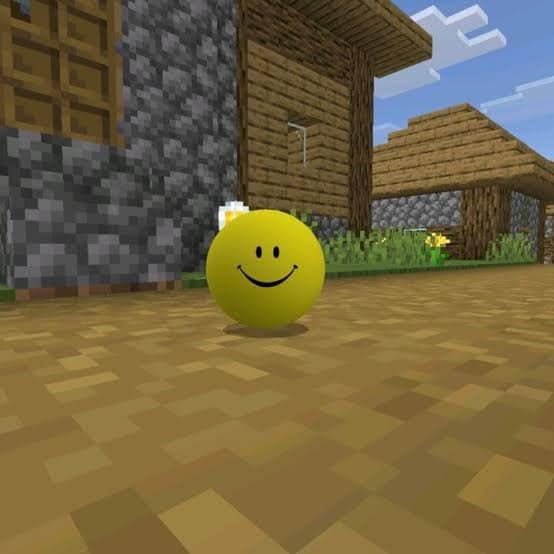
Before any real mod existed, “Verity” was a character built entirely through video editing, sound design, and voice acting for a horror series on YouTube. The premise was simple but effective: a cheerful yellow helper appears in your world, seems genuinely useful at first, and gradually reveals that it knows far more about you and your world than it should. The videos never shipped an actual downloadable file — the “mod” was fictional, which is exactly why so many people searching for it kept landing on dead ends, fake download pages, and mirror sites promising a file that didn’t exist.
That changed once the series went viral enough that independent creators started building real mods around the same concept. Today there are several separately-developed adaptations, each built by different modders, using the original video series purely as creative inspiration rather than an official blueprint.
What Is the Verity Mod, Exactly?
Verity arrives early in a new world as a small, friendly-looking companion you can talk to. On Bedrock, you summon it by typing “Hey Verity” in chat. Over roughly six in-game days, its personality moves through four phases: helpful, uncanny, sinister, and hostile. Expect scripted scares in the later phases, including unnatural darkness and appearances you didn’t trigger yourself. It’s a horror experience first and a utility companion second, so it’s best played in a world you don’t mind sacrificing to the bit rather than your main survival save.
Which Version Should You Download?
There are two main families of Verity mods, and they aren’t interchangeable — picking the wrong one for your platform is the most common mistake people make.
- Bedrock Edition (mobile, console, Windows) — the most downloaded version, with over 4.6 million downloads on CurseForge alone. Works as an add-on and requires the Beta APIs experiment enabled on your world. This is the version most players want, since it covers mobile, console, and Windows all at once.
- Java Edition — requires Forge or NeoForge as a mod loader, plus the GeckoLib library for animations to work correctly. The live AI chat feature connects to Groq’s API using a free key you generate yourself, or alternatively a local Ollama model if you’d rather not connect to an external service at all.
If you’re not sure which edition you’re running, check how you normally launch Minecraft: the Bedrock version is the one from the Microsoft Store or the standard mobile/console app, while Java Edition is launched through the separate Minecraft Launcher and supports traditional mods.
How to Install Verity Mod on Bedrock
- Download the add-on files (.mcpack or .mcaddon) from a verified source like CurseForge.
- Open the files with Minecraft installed — they’ll import automatically into your Behavior Packs and Resource Packs.
- Create a new world, or open an existing one you don’t mind risking, since the mod actively alters gameplay.
- In World Settings, scroll down to Experiments and enable “Beta APIs” — the add-on won’t function correctly without this.
- Under Behavior Packs and Resource Packs, activate the Verity add-on for that specific world.
- Load into the world and type “Hey Verity” in chat to begin the interaction.
How to Install Verity Mod on Java Edition
- Install Forge or NeoForge matching your exact Minecraft version — check the mod’s page for which loader and version it currently supports, since this changes over time.
- Download GeckoLib separately from its own official CurseForge page — don’t take it from a random Verity-branded mirror, and make sure the version matches your Forge/Minecraft build.
- Download the Verity JE mod file (.jar) from its official CurseForge or Modrinth listing.
- Drop both .jar files (GeckoLib and the Verity mod itself) into your Minecraft “mods” folder.
- Launch Minecraft using the Forge/NeoForge profile you just installed, not the vanilla launcher profile.
- If you want the live AI chat feature, follow the mod’s setup guide to add your free Groq API key, or configure a local Ollama model instead.
Common Installation Problems
A few issues come up often enough to mention specifically. If the add-on doesn’t seem to do anything on Bedrock, double-check that Beta APIs is actually enabled — this is the single most common cause of a “silent” install that seems to do nothing. On Java Edition, a mod that crashes on launch is almost always a version mismatch between Forge/NeoForge, GeckoLib, and the Verity mod itself, so it’s worth re-checking all three against each other before assuming the install failed. If the AI chat feature specifically doesn’t respond, the Groq API key is the most likely culprit — regenerating a fresh key usually resolves it.
Safety Tips Before You Download
- Only download from official CurseForge or Modrinth listings — several fan pages and mirror sites have circulated that trigger browser safety warnings, even when they visually look like a polished download page.
- Never enter your Minecraft, Microsoft, or Google account password on a third-party “Verity mod” website — legitimate mod downloads never ask for this under any circumstance.
- Double-check that a Java mod’s required loader (Forge vs NeoForge) and version match your game before installing, rather than assuming any version will work.
- If a download prompts you to disable your antivirus first, close the page immediately — that’s one of the most common red flags for bundled malware.
- Be skeptical of any listing promising features far beyond what official versions describe — exaggerated claims are a common way fake listings attract downloads.
Frequently Asked Questions
Is the original Verity mod from the videos real?
No — the character from ThatMob’s viral videos was created with scripted editing and voice acting, not a real mod. The fan-made adaptations covered in this guide are real, separately-developed projects inspired by that series, not a recreation of the original fictional version.
Can I use the Bedrock and Java versions together?
No, they’re built for different game editions with completely different underlying systems, and aren’t compatible with each other in any combination.
Do I need to pay for the AI chat feature?
No — you can use a free Groq API key, or run a local Ollama model instead if you’d rather not connect to an external service at all.
Will installing Verity mod affect my other worlds?
On Bedrock, the add-on only affects worlds where you’ve specifically activated it under Behavior Packs, so other saves remain untouched. On Java Edition, the mod loads globally once installed, but its effects are generally scoped to worlds where you interact with the Verity entity directly.
Why do some Verity mod pages look untrustworthy?
Because the concept went viral before any real mod existed, a wave of fake download pages appeared early on to capture search traffic. Some of those pages are still indexed and occasionally still surface in search results, which is exactly why sticking to official CurseForge or Modrinth listings matters.
Want the safest, fastest way to get set up? Get the verified Verity Mod install package — pre-checked links for both Bedrock and Java, plus the GeckoLib file already matched to the right version.
If you’re setting up mods on a PC instead of a mobile device, our guide on installing mobile games on PC covers emulator setup that some players use alongside modding.
For the verified, actively-updated mod listings referenced in this guide, see the official pages on CurseForge.
How to Tell a Real Verity Mod Download from a Fake
Because the Verity mod started as fiction, the search results filled with fake download pages long before real adaptations existed. Several are still online. Check these points before downloading anything.
| Warning sign | What it usually means |
|---|---|
| Asks you to complete a survey or “verification” | Offer wall; you never get a file |
| Download is an .exe or .apk installer | Not how Minecraft add-ons work; likely malware |
| Asks for your Microsoft or Xbox login | Account phishing |
| File is a .zip you must “unlock” with a password from a video | Ad-revenue funnel; often bundled adware |
| Page has no creator name or changelog | Repost, often an outdated or altered copy |
| Comments disabled and no update history | Nothing to hold the uploader accountable |
A legitimate Bedrock add-on arrives as a .mcaddon or .mcpack file, and a Java mod as a .jar for a specific Minecraft version. Anything else deserves suspicion.
Back Up Your World Before You Install
Mods change world data, and a broken install can corrupt a save. Five minutes of backup beats losing a build you spent months on.
- Bedrock on mobile: open Settings, then Profile or Storage, and export the world to a file you keep outside the game folder.
- Bedrock on Windows: copy the world folder from the com.mojang directory to another drive.
- Java: copy the saves folder from .minecraft to a backup location.
- Realms: download a copy of the world from the Realms menu before adding anything.
- Test on a copy: install the mod on a duplicated world first, not your main one.
Performance and Compatibility
Add-ons that script behaviour are heavier than simple texture packs, and the Verity mod is a scripted companion.
- Check the Minecraft version. A mod built for one version often fails silently on another.
- Expect lower frame rates on older phones and tablets, especially with render distance turned up.
- Avoid stacking mods that change the same behaviours; conflicts show up as missing entities or crashes.
- Turn off other add-ons when you troubleshoot, then re-enable them one at a time.
- Multiplayer: every player needs the same add-on, and many servers reject client-side mods entirely.
How to Remove the Verity Mod
- Open the world settings and turn off the behaviour and resource packs for the mod.
- Leave the world, then delete the pack from Settings, Storage, on Bedrock.
- On Java, remove the .jar file from the mods folder.
- Restart Minecraft and load the world to confirm it opens cleanly.
- If the world misbehaves afterwards, restore the backup you made.
A Note for Parents
Horror-themed mods are aimed at older children and teenagers, and the fan adaptations vary in tone. If your child is asking to install one, the safest approach is to sit with them for the download, use only official add-on files, and keep Microsoft account passwords out of any third-party site. Minecraft’s own parental controls and Realms settings let you limit who they play with while mods are installed.
Free PDF: Minecraft Mod Safety Card
Check the download, back up the world, install without breaking your save. Free download, no sign-up, no offers to complete.