
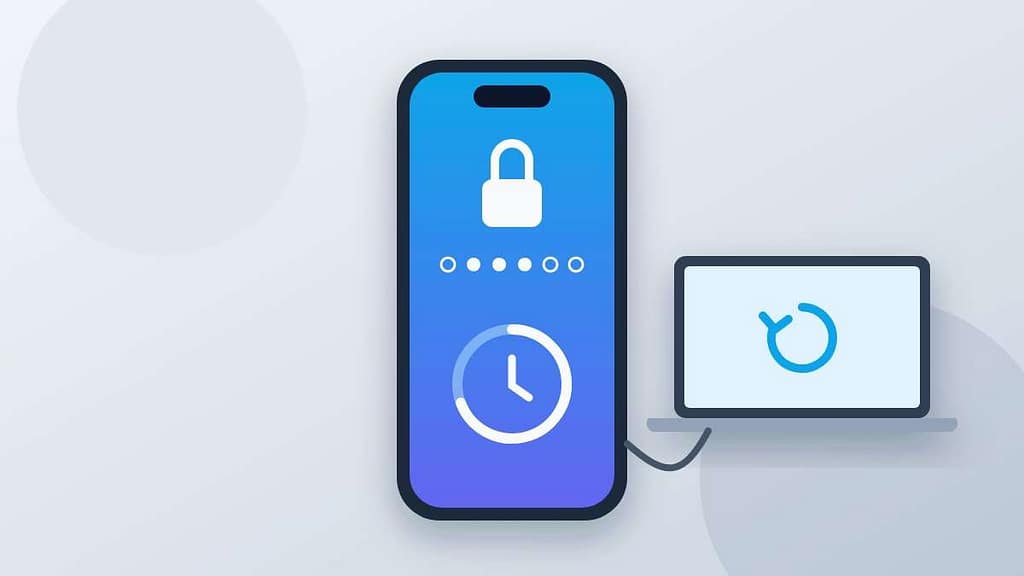
Forgetting your iPhone passcode is stressful, especially when the screen says “iPhone Unavailable” and a timer counts down. Apple’s security is strong for a reason, which means there is no secret code or back door. There are, however, official ways back in, and one of them keeps all of your data if you act quickly.
This guide explains each option in the order you should try them, what you need for each, and how to get your photos and messages back if a reset is unavoidable.
Table of Contents
- Before You Start: Check These Three Things
- Method 1: Use Your Previous iPhone Passcode (Within 72 Hours)
- Method 2: Reset the iPhone Directly on the Lock Screen
- Method 3: Restore the iPhone with a Computer
- Method 4: Get Help from Apple Support
- After the Reset: Get Your Data Back
- iPhone Passcode vs Apple Account Password vs Screen Time
- iPhone Passcode Lockout Timers Explained
- Locked Out of an iPhone You Bought Used?
- Avoid These Mistakes and Scams
- How to Never Forget Your iPhone Passcode Again
- Frequently Asked Questions
Before You Start: Check These Three Things
Which options work for you depends on a few details. Take a moment to check them, because they decide whether you can get past a forgotten iPhone passcode without a computer.
- Did you change your iPhone passcode in the last 72 hours? If so, the first method may get you in with your data intact.
- Is the iPhone connected to Wi-Fi or cellular data? The on-device reset option only appears when it is online.
- Do you know your Apple Account password? You need it to sign out during a reset and to activate the iPhone afterwards.
Also, stop guessing. Each wrong attempt adds a longer waiting period, and many incorrect attempts lead straight to a lockout that requires erasing the phone.
Finally, think about your backups before you choose a method. Open iCloud settings on another Apple device or at iCloud.com to see when your iPhone last backed up. Knowing that your photos and messages are safe makes the decision much easier, and it tells you whether it is worth waiting a few hours to remember the code before you erase anything.
Method 1: Use Your Previous iPhone Passcode (Within 72 Hours)
Since iOS 17, Apple’s Passcode Reset feature keeps your old iPhone passcode active for 72 hours after you change it. This is the only official method that unlocks the phone without erasing it.
- Enter an incorrect passcode until the iPhone Unavailable screen appears. This usually takes five attempts.
- Tap Forgot Passcode? in the bottom corner of the screen.
- Tap Enter Previous Passcode.
- Enter the iPhone passcode you used before the change.
- Follow the prompts to create a new iPhone passcode right away.
This option disappears once the 72 hours are up. Apple also lets you expire the old passcode early for security, so it may not be available if you did that. Details are on Apple’s page about using your old passcode within 72 hours.
Method 2: Reset the iPhone Directly on the Lock Screen
If the previous passcode option is not available, you can erase and reset the iPhone without a computer. According to Apple’s guide on resetting your device without a computer, you need iOS 15.2 or later, a network connection and your Apple Account password, and Find My must have been turned on.
- Keep entering the wrong passcode until the iPhone Unavailable or Security Lockout screen appears.
- Tap Forgot Passcode?. If it does not appear, the phone is probably offline.
- Tap Start iPhone Reset to confirm.
- Enter your Apple Account password to sign out.
- Choose whether to keep or delete your eSIM, then tap Erase iPhone.
- When the iPhone restarts, set it up and restore from your backup.
This erases everything stored on the phone, including the forgotten iPhone passcode. What comes back depends entirely on your backups, covered below.

Method 3: Restore the iPhone with a Computer
Use a computer to remove a forgotten iPhone passcode when the phone is offline, runs an older version of iOS, or does not show the reset option. You will need a Mac or Windows PC, a cable that fits your iPhone, an internet connection and up to an hour. Apple’s full instructions are on its page for when you forgot your iPhone passcode.
Put the iPhone into recovery mode
- Make sure the iPhone is not connected to the computer, then turn it off.
- Hold the correct button for your model while you connect the cable, and keep holding until you see the computer-and-cable recovery screen:
| iPhone model | Button to hold |
|---|---|
| iPhone 8, iPhone SE (2nd and 3rd generation) and any iPhone with Face ID | Side button |
| iPhone 7 and iPhone 7 Plus | Volume down button |
| iPhone 6s and earlier, iPhone SE (1st generation) | Home button |
Restore from the computer
- On a Mac with macOS Catalina or later, open Finder and select your iPhone in the sidebar. On Windows, open the Apple Devices app, or iTunes on older setups.
- When asked to Restore or Update, choose Restore.
- The computer downloads the software and erases the phone. If the download takes more than 15 minutes, the iPhone may exit recovery mode; repeat the button steps.
- When it finishes, disconnect the iPhone, set it up and choose a new iPhone passcode.
Method 4: Get Help from Apple Support
If none of the methods reset your iPhone passcode, or you cannot remember your Apple Account password either, contact Apple Support or book an appointment at an Apple Store or authorized service provider. Bring photo ID and, if possible, proof of purchase.
Be realistic about what they can do. Apple cannot look up or bypass an iPhone passcode, and it cannot recover data from a phone that must be erased. What Apple can do is guide the restore, help recover your Apple Account and, with proof of purchase, assist with Activation Lock.
After the Reset: Get Your Data Back
Once the iPhone is erased, the old iPhone passcode is gone and you set it up like a new phone. During setup, choose one of these options on the Transfer Your Apps & Data screen.
- From iCloud Backup: sign in with your Apple Account and choose the most recent backup. Photos synced with iCloud Photos, messages in iCloud and contacts return automatically.
- From Mac or PC: restore a backup you made in Finder, the Apple Devices app or iTunes. Encrypted backups also keep saved passwords and Health data.
- From another iPhone: useful if your data is also on another device.
If you had no backup, some data may still be safe in services you signed in to, such as Google Photos, WhatsApp chat backups, or email accounts.
Activation Lock after a reset
Activation Lock is linked to Find My and your Apple Account. After erasing, the iPhone asks for the Apple Account email and password that were used on it. This is a theft-protection feature, not a bug. If you forgot that password as well, recover it at Apple’s account website from another device before you start.
Back Up Before It Happens Again
A forgotten iPhone passcode only costs you data if there is no recent backup. iCloud Backup runs automatically overnight, and a larger iCloud+ plan fits photos and full device backups.
iPhone Passcode vs Apple Account Password vs Screen Time
Several different codes protect an iPhone, and mixing them up is surprisingly common. Before you erase anything, make sure the screen is really asking for your iPhone passcode.
| What the screen asks for | What it is | How to recover it |
|---|---|---|
| Enter Passcode on the Lock Screen | Your iPhone passcode | Methods 1 to 3 in this guide |
| Apple Account password in Settings or the App Store | Your online Apple Account | Reset it at Apple’s account website; no need to erase the iPhone |
| Screen Time passcode | A separate four-digit code for restrictions | Tap “Forgot Passcode?” in Screen Time settings and use your Apple Account |
| SIM PIN after a restart | A code stored on your SIM card | Use the PUK code from your carrier |
| Activation Lock after a reset | Your Apple Account used with Find My | Enter the Apple Account email and password |
A Screen Time code or SIM PIN never requires erasing your phone. Only a forgotten iPhone passcode on the Lock Screen does.
iPhone Passcode Lockout Timers Explained
Each wrong attempt makes the next wait longer. The exact delays can vary by iOS version, but the pattern is consistent: a few quick attempts are allowed, then the iPhone shows a countdown before you can try again, and after repeated failures it stops offering a timer at all.
- Do not keep guessing randomly. Use the waiting time to think about passcodes you have used before.
- Watch for the Forgot Passcode? button. It appears on the lockout screen and is your route to Method 1 or Method 2.
- Check “Erase Data”. If you or your employer turned on the option to erase data after ten failed attempts, guessing can wipe the phone automatically.
Locked Out of an iPhone You Bought Used?
If a secondhand iPhone arrived locked with someone else’s iPhone passcode, or it shows Activation Lock after you reset it, the fix has to come from the previous owner. Ask the seller to remove the device from their Apple Account at iCloud’s Find Devices page. Until they do, the phone cannot be activated, and no legitimate tool can change that. If the seller refuses, request a refund through the marketplace or payment provider.
When buying a used iPhone in the future, check it in person before paying. Make sure it opens to the Hello screen or to the seller’s home screen, that the seller signs out of their Apple Account in front of you, and that Find My is turned off under Settings. These two minutes prevent almost every secondhand lockout.
Avoid These Mistakes and Scams
Search results for a forgotten iPhone passcode are full of paid tools that promise to “unlock any iPhone”. Be careful.
- They still erase your iPhone. Removing a passcode without it wipes the data, exactly like Apple’s free methods.
- They cannot legitimately remove Activation Lock. Tools that claim to bypass it on phones that are not yours are a red flag.
- Never share your Apple Account password with a website or “technician” who contacts you online.
- Watch for fake Apple messages. After a phone is lost or reset, scammers send texts pretending to be Apple to steal account details.
How to Never Forget Your iPhone Passcode Again
- Turn on iCloud Backup. Go to Settings > [your name] > iCloud > iCloud Backup.
- Store your iPhone passcode in a password manager you can open from another device.
- Write down a new passcode the day you change it. Most lockouts happen within days of a change.
- Set up a recovery contact for your Apple Account in Settings, so a trusted person can help you regain access.
- Keep Face ID or Touch ID active, but remember the iPhone still asks for the iPhone passcode after a restart.
Using a Samsung phone as well? Our guide for a forgotten Samsung PIN covers Galaxy devices, and the general guide on how to unlock your phone if you forgot the password covers other brands.
Bonus PDF: iPhone Lockout Prevention Checklist
Set this up once so a forgotten passcode never costs you your data. To download it, try one free sponsored app from the list you will see (usually a couple of minutes). Everything in this guide stays free without it.
Frequently Asked Questions
Can Apple unlock my iPhone without erasing it?
Only with Passcode Reset: if you changed your passcode in the last 72 hours on iOS 17 or later, you can use the previous passcode. Otherwise, Apple’s supported options erase the iPhone, and your data returns only from a backup.
How many wrong attempts before the iPhone is disabled?
After several incorrect attempts the iPhone shows an Unavailable or Security Lockout screen with a waiting timer. Repeated failures lengthen the delay, and after enough attempts you must reset the device.
Do I need my Apple Account password?
For the on-device reset, yes, to sign out and remove Activation Lock. After a computer restore, you also need it to activate the iPhone again.
Can an Apple Store unlock my iPhone?
Apple Store staff can help you erase and restore it, and with proof of purchase they can assist with Activation Lock, but they cannot recover data or bypass the passcode.
Are iPhone unlock tools safe?
Tools that promise to remove the passcode still erase the iPhone, cannot bypass Activation Lock legitimately, and often cost money for something Apple does for free. Use Apple’s official methods instead.
If you forgot your iPhone passcode, try your previous passcode first if you changed it in the last 72 hours. If that is not possible, reset the iPhone on the lock screen or with a computer, then restore from your backup. Apple’s free options are the safest route, and a regular backup turns a lockout into a short inconvenience.