
An eSIM puts your phone line on a chip built into the device, so there is no tiny card to lose, no tray to open, and no store visit when you change phones. A T-Mobile eSIM can be activated in minutes from the T-Life app, and newer iPhones and Android phones can move one from an old device almost automatically.
This guide explains how to check whether your phone supports a T-Mobile eSIM, the six steps to activate or convert your line, how to move an eSIM to a new phone, and how to fix the errors that stop activation.
Table of Contents
- What a T-Mobile eSIM Is and Why Use One
- Step 1: Check That Your Phone Supports eSIM
- Step 2: Prepare Before You Activate
- Step 3: Activate a T-Mobile eSIM in the T-Life App
- Step 4: Install the eSIM Profile on Your Phone
- Step 5: Move a T-Mobile eSIM to a New Phone
- Step 6: Confirm Everything Works
- Fix T-Mobile eSIM Activation Errors
- eSIM vs Physical SIM on T-Mobile
- Set Up Dual SIM with a T-Mobile eSIM
- Before You Sell or Trade In Your Phone
- Using a T-Mobile eSIM When You Travel
- Frequently Asked Questions
What a T-Mobile eSIM Is and Why Use One
An eSIM (embedded SIM) is a digital SIM profile downloaded to a chip inside your phone. It works exactly like a physical SIM for calls, texts and data, but it is managed through software.
- Faster setup: activate a line without waiting for a SIM card to arrive.
- Easier phone upgrades: transfer the line between phones in minutes.
- Dual SIM flexibility: keep a T-Mobile eSIM alongside another number or a travel plan.
- Harder to steal: a thief cannot simply pull the SIM out of your phone.
Some newer phones sold in the United States, including recent iPhone models, have no physical SIM tray at all, so an eSIM is the only option. Even on phones that still have a tray, an eSIM frees the slot for a second physical SIM, which is handy for work lines or travel.
Step 1: Check That Your Phone Supports eSIM
Before starting, confirm three things about your phone.
- It supports eSIM. Dial
*#06#. If an EID number appears along with the IMEI, the phone has an eSIM chip. - It is unlocked or already a T-Mobile phone. A phone locked to another carrier will not accept a T-Mobile eSIM.
- It works on T-Mobile’s network. Enter the IMEI in T-Mobile’s device compatibility checker on its website.
Most recent iPhones, Google Pixel phones and Samsung Galaxy S and Z series phones support eSIM. Some budget models and many older phones do not, and some regional models differ, so always check your exact phone.
| Where to find | iPhone | Android |
|---|---|---|
| IMEI and EID | Settings, General, About | Settings, About phone (or dial *#06#) |
| Carrier lock status | Settings, General, About, Carrier Lock | Ask the carrier or try another carrier’s SIM |
| eSIM settings | Settings, Cellular | Settings, Network & internet, SIMs (Samsung: Connections, SIM manager) |
Smartwatches and tablets
Cellular smartwatches and tablets also use eSIM, but they are usually added as separate connected-device lines with their own plans. Set them up from the companion app, such as the Watch app on iPhone or the Galaxy Wearable app, and follow T-Mobile’s prompts. The steps in this guide focus on phone lines.
Step 2: Prepare Before You Activate
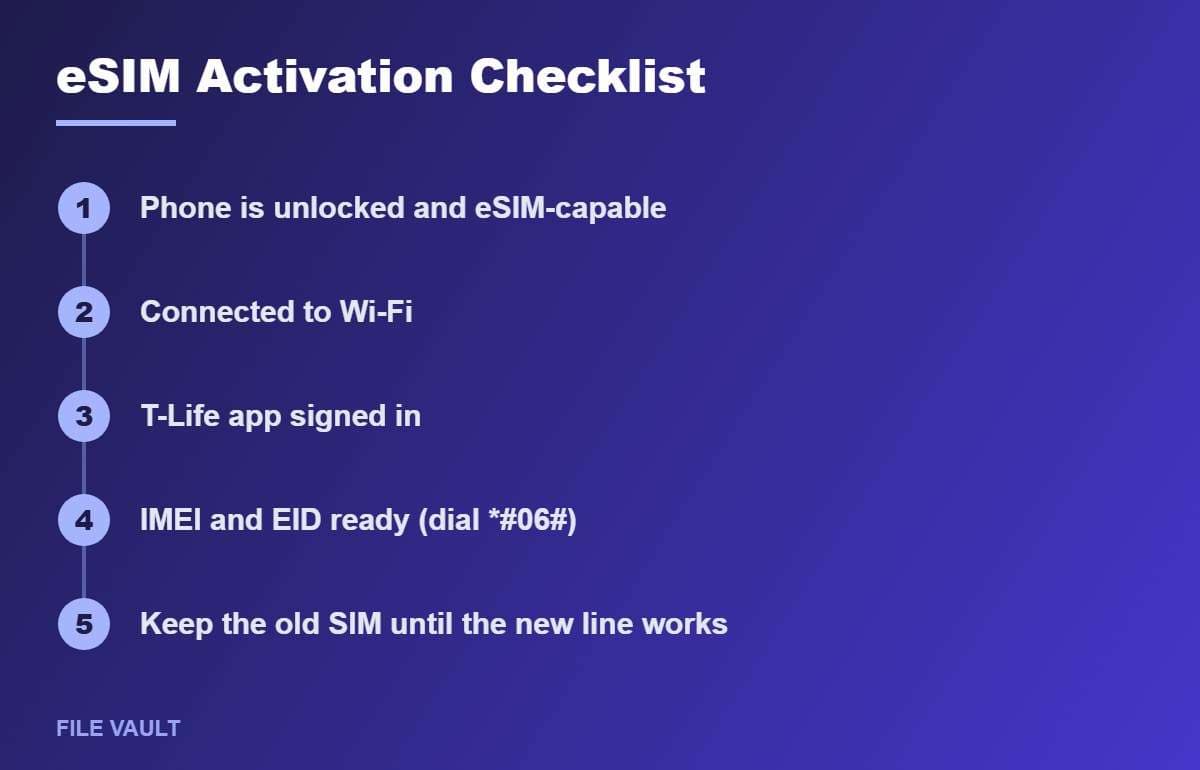
- Connect to Wi-Fi. The eSIM profile downloads over the internet, and your old line may stop working during the switch.
- Install the T-Life app and sign in with your T-Mobile ID.
- Have your IMEI and EID ready by dialing
*#06#and taking a screenshot. - Keep your old SIM in place until the T-Mobile eSIM is fully working.
- Update your phone’s software so the latest eSIM features are available.
Step 3: Activate a T-Mobile eSIM in the T-Life App
T-Mobile restored self-service SIM changes in the T-Life app in 2025, so most customers can activate or switch to eSIM without calling support.
- Open the T-Life app while connected to Wi-Fi.
- Go to your account or Manage area and select the line you want to change.
- Choose SIM transfer or activation, then Get started.
- Enter the IMEI of the phone. The app detects whether the phone supports eSIM, physical SIM or both.
- Select eSIM and confirm the EID.
- Review the details, confirm, and complete any security verification the app requests.
- Follow the on-screen prompt on your phone to download and install the eSIM profile.
Menu names can shift slightly between app versions, but the SIM transfer or activation option is the key. If the app cannot complete the change, T-Mobile support or a store can activate the T-Mobile eSIM for you.
Step 4: Install the eSIM Profile on Your Phone
On iPhone
- When prompted, tap the notification that a cellular plan is ready to be installed, or go to Settings, then Cellular, then Set Up Cellular or Add eSIM.
- Choose the T-Mobile plan and tap Continue.
- Label the line, for example Primary, and choose the default line for calls, iMessage and data.
On Google Pixel and other Android phones
- Open Settings, then Network & internet, then SIMs.
- Tap Add SIM or the plus icon and choose to download an eSIM.
- Follow the prompts, or scan a QR code if T-Mobile provided one.
On Samsung Galaxy
- Open Settings, then Connections, then SIM manager.
- Tap Add eSIM and follow the prompts or scan the QR code.
- Set the T-Mobile eSIM as the preferred SIM for calls, messages and mobile data.
Step 5: Move a T-Mobile eSIM to a New Phone
iPhone to iPhone with eSIM Quick Transfer
Apple’s eSIM Quick Transfer moves your line between iPhones when the carrier supports it.
- Keep both iPhones unlocked, nearby, on Wi-Fi and with Bluetooth on.
- On the new iPhone, go to Settings, then Cellular, then Set Up Cellular or Add eSIM.
- Choose the number to transfer, or tap Transfer From Nearby iPhone.
- Follow the instructions on the old iPhone to approve the transfer.
Apple notes that when the plan activates on the new iPhone, the SIM on the previous iPhone is deactivated. Apple also offers a process to transfer an eSIM from Android to iPhone for supported carriers.
Android to Android
Recent Pixel and Samsung phones can transfer SIMs during setup or from SIM settings when both phones are nearby. If the option is not offered, use the T-Life app’s SIM transfer or activation flow with the new phone’s IMEI and EID.
Step 6: Confirm Everything Works
- Turn off Wi-Fi and load a web page to test mobile data.
- Make a test call and send a text to another phone.
- On iPhone, check that iMessage and FaceTime show your phone number under Settings.
- Test Wi-Fi Calling if you use it at home.
- Restart the phone once and confirm the T-Mobile eSIM reconnects automatically.
Want to Test T-Mobile Before Switching?
If your phone supports eSIM, T-Mobile’s official trial offer lets you try the network on a second line without removing your current SIM. Check the current trial terms and eligibility on T-Mobile’s site.
Fix T-Mobile eSIM Activation Errors
| Problem | Likely cause | Fix |
|---|---|---|
| App says device not compatible | Phone lacks eSIM or is locked | Check EID with *#06#; confirm the phone is unlocked |
| eSIM download stuck or fails | No internet or temporary server issue | Connect to strong Wi-Fi, restart, try again later |
| No Service after activation | Line not selected or profile off | Turn the line on in Cellular or SIM settings; restart |
| Calls work, data does not | Wrong default data line | Choose the T-Mobile eSIM for mobile data |
| Security check blocks the change | Account protection settings | Complete verification or contact T-Mobile support |
| Old phone still has service | Activation not complete | Wait a few minutes, restart the new phone, then check again |
Protect your line from SIM swap scams
Because SIM changes can now be done in an app, account security matters more. Use a strong T-Mobile ID password, turn on two-step verification, and review T-Mobile’s account protection options, such as SIM protection settings, in the T-Life app. Never share verification codes with anyone who contacts you, even if they claim to be from the carrier.
eSIM vs Physical SIM on T-Mobile
Both options give you the same network, plan and speeds. The difference is how you manage the line.
| T-Mobile eSIM | Physical SIM | |
|---|---|---|
| Activation | Download in minutes over Wi-Fi | Needs a SIM card by mail or in store |
| Switching phones | Transfer in app or with Quick Transfer | Move the card to the new phone |
| Theft protection | Cannot be removed from the phone | Can be removed and used elsewhere |
| Older or budget phones | Not always supported | Almost always supported |
| Quick testing in another phone | Requires a new transfer | Just swap the card |
For most people with a recent phone, a T-Mobile eSIM is the more convenient choice. A physical SIM still makes sense if you often move your line between several phones, or if your device does not support eSIM.
Set Up Dual SIM with a T-Mobile eSIM
Dual SIM phones can run a T-Mobile eSIM alongside a second line, such as a work number or another carrier. Once both lines are active, choose sensible defaults.
- Label each line so notifications and call logs are easy to read.
- Pick a default line for calls and texts, usually your main personal number.
- Pick one line for mobile data, and decide whether the phone may switch data to the other line automatically.
- Check contacts so frequent contacts always use the right line; iPhone and Android can remember a preferred line per contact.
- Test Wi-Fi Calling on both lines if you rely on it at home or work.
Before You Sell or Trade In Your Phone
- Make sure your number works on the new phone first. Test calls, texts and data.
- Then remove the eSIM profile from the old phone in Cellular or SIM settings.
- Sign out of your Apple Account or Google Account and turn off Find My or Find Hub.
- Factory reset the phone so no personal data remains.
Deleting an eSIM profile does not cancel your T-Mobile service or plan. It only removes the line from that phone, which is exactly what you want before handing it to someone else.
Using a T-Mobile eSIM When You Travel
- Keep your T-Mobile eSIM active for calls and texts, and add a local or travel eSIM for cheaper data.
- Set the travel eSIM as the data line and turn off data roaming on the T-Mobile line if your plan charges for it.
- Check your plan’s international benefits first; some T-Mobile plans include data in many countries.
- Remove expired travel eSIMs after the trip to avoid confusion.
T-Mobile’s official SIM card and eSIM support page lists current activation options, and Apple’s guide to setting up eSIM on iPhone covers Quick Transfer in detail.
Switching from another carrier? Our guide on how to carrier unlock your Android phone explains how to make sure your phone is ready. If you want to try the network first, see our T-Mobile free trial guide.
Bonus PDF: eSIM Switch Checklist
Everything to prepare, activate and test before you remove your old SIM. To download it, try one free sponsored app from the list you will see (usually a couple of minutes). Everything in this guide stays free without it.
Frequently Asked Questions
Does every phone support a T-Mobile eSIM?
No. Your phone must support eSIM and be unlocked or already on T-Mobile. Dial *#06#; if an EID number appears, the phone supports eSIM. Check T-Mobile’s compatibility tool to be sure.
Can I convert my physical SIM to a T-Mobile eSIM myself?
Yes, on supported phones. Open the T-Life app, choose your line, then SIM transfer or activation, and follow the prompts to enter your device IMEI and EID.
What happens to my old SIM after activating eSIM?
Once the T-Mobile eSIM activates, the previous SIM for that number stops working. Keep it until the eSIM is confirmed working, then store or recycle it.
Can I use a T-Mobile eSIM and another carrier’s SIM together?
Yes, on dual SIM phones that are unlocked. You can keep one line for calls and another for data, which is useful for travel or testing coverage.
Should I delete my eSIM before selling my phone?
Only after your number is active on the new phone. Deleting an eSIM does not cancel service, but you would need a new eSIM profile to use that line again on the old phone.
Activating a T-Mobile eSIM is straightforward once you confirm your phone is unlocked and eSIM-capable: connect to Wi-Fi, use SIM transfer or activation in the T-Life app, install the profile, and test calls, texts and data before removing the old SIM. For upgrades, eSIM Quick Transfer and Android’s SIM transfer tools make moving your number even faster.