
Forgetting the PIN, pattern or password on your Redmi phone is stressful, especially when every photo and chat is behind that lock screen. There are real, official ways back in, but it helps to know upfront that most of them erase the phone, and that Xiaomi’s security features will ask for your account details afterwards.
This guide explains five safe ways to get back into a locked Redmi phone, from methods that keep your data to a full recovery mode reset, plus what to do if you also forgot your Xiaomi Account or Google Account password.
Table of Contents
- Before You Start: What to Expect
- Way 1: Retry Old PINs and Patterns Carefully
- Way 2: Use an Unlock Method You Set Up Earlier
- Way 3: Erase with Xiaomi Cloud Find Device
- Way 4: Erase with Google Find Hub
- Way 5: Reset a Redmi Phone in Recovery Mode
- After the Reset: Xiaomi and Google Account Locks
- Avoid Unlock Scams and Bypass Tools
- Bought a Locked Redmi Phone Second-Hand?
- MIUI vs HyperOS: Menu Differences on a Redmi Phone
- Redmi Phone Still Won’t Finish Setup?
- Restore Your Data After Getting Back In
- Prevent Getting Locked Out Again
- Frequently Asked Questions
Before You Start: What to Expect
Xiaomi, Redmi and POCO phones run MIUI or HyperOS on top of Android, and they are designed so that nobody can bypass the lock screen without erasing the phone. That protects you if the phone is ever stolen.
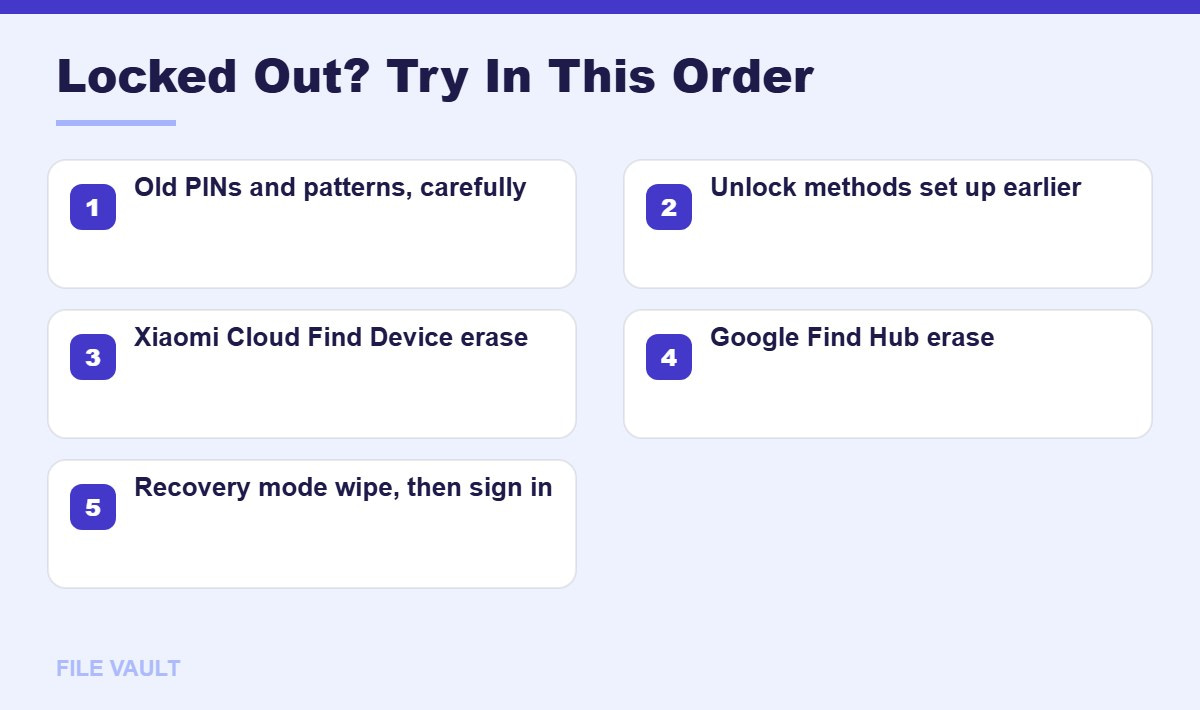
| Method | Keeps data? | Needs |
|---|---|---|
| Remember or retry old codes | Yes | Patience; lockout timers |
| Unlock methods set up earlier | Yes | Fingerprint or face unlock that still works after restart rules |
| Xiaomi Cloud Find Device erase | No | Xiaomi Account, phone online |
| Google Find Hub erase | No | Google Account, phone online |
| Recovery mode wipe | No | Physical buttons; account passwords afterwards |
Way 1: Retry Old PINs and Patterns Carefully
Many people get back in by remembering an older code. Before erasing anything, try this calmly.
- Write down every PIN, pattern or password you have used on any phone, including older ones.
- Try them one at a time, watching for typos and whether the keyboard switched languages for passwords.
- Respect the lockout timer after several wrong attempts; repeated failures lengthen the wait.
- If you recently changed the code, think about where you were and what you might have chosen.
If your Redmi phone shows a countdown after wrong attempts, leave it on charge and use the waiting time to check old notes, password managers or photos where you might have written the code down. Family members sometimes remember a code you shared with them years ago.
Do not hand the phone to someone who promises to guess it quickly; there is no shortcut, and too many wrong attempts only add delays.
Way 2: Use an Unlock Method You Set Up Earlier
If fingerprint or face unlock is enabled, it may still open your Redmi phone as long as the phone has not restarted recently. Android requires the PIN, pattern or password after a restart and after long periods without using it, so keep the phone charged and avoid restarting it while you try to remember the code.
Once you are in with biometrics, immediately open Settings, then Fingerprints, face data & screen lock (the name varies), and change the lock screen code to one you will remember. Some changes ask for the old code, so write down anything you recall first.
Older MIUI account options
Some older MIUI versions offered a way to reset the lock screen with your Xiaomi Account after several wrong attempts. If your phone shows such an option on the lock screen, use it. Current HyperOS versions generally rely on the erase methods below instead.
Way 3: Erase with Xiaomi Cloud Find Device
If you signed in to a Xiaomi Account with Find Device turned on, you can erase your Redmi phone remotely, even if it is in another room or another city.
- On a computer or another phone, go to the official Xiaomi Cloud website and sign in with the Xiaomi Account used on the phone.
- Open Find device and select your Redmi phone from the list of devices.
- Choose Erase device and confirm.
Xiaomi notes that these remote options only work when the phone is connected to the internet. If it is offline, the erase runs the next time it connects. After erasing, the phone still requires the Xiaomi Account password during setup.
Way 4: Erase with Google Find Hub
Every Redmi phone signed in to a Google Account can also be erased with Google’s Find Hub.
- Go to Google’s Find Hub website or open the Find Hub app on another Android device.
- Sign in with the Google Account used on the locked phone.
- Select the Redmi phone and choose Factory reset or Erase device.
- Confirm and sign in again if asked.
Google’s official guide explains how to find, secure or erase a lost Android device. After the reset, the phone asks for the same Google Account during setup because of Factory Reset Protection.
Way 5: Reset a Redmi Phone in Recovery Mode
Recovery mode works on a Redmi phone even without internet. It erases everything stored on the phone that is not backed up.
- Charge your Redmi phone to at least 50 percent.
- Power the phone off completely. If the lock screen blocks the power menu, hold the power button for longer until it restarts, then use the next step as it boots.
- Press and hold Volume Up and Power together until the Xiaomi, Redmi or POCO logo appears, then release when the recovery menu opens.
- Select Wipe Data, then Wipe All Data. Use the volume buttons to move and the power button to select if touch does not work.
- Confirm the wipe and wait; it can take several minutes, and the screen may show a progress bar or stay on the logo for a while before returning to the menu.
- Return to the main menu and choose Reboot, then Reboot to System.
Menu wording differs slightly between MIUI and HyperOS versions, but the Volume Up and Power combination is the standard way into recovery on Redmi devices.
Never Lose Photos to a Reset Again
Most ways back into a locked phone erase it. Regular cloud backups mean a reset costs you a few minutes of setup instead of years of photos and messages.
After the Reset: Xiaomi and Google Account Locks
When the Redmi phone restarts, setup includes two security checks.
- Xiaomi Account (Find Device lock): the phone asks for the Xiaomi Account that was signed in before. Enter its password.
- Google Account (Factory Reset Protection): the phone asks for a Google Account that was previously synced. Enter that account’s email and password.
If you forgot the account passwords
- Xiaomi Account: use the official Forgot password option on Xiaomi’s account website with the phone number or email linked to the account.
- Google Account: use Google’s account recovery page from another device and answer the recovery questions as accurately as you can.
- Allow time: after a password change, some security checks may ask you to wait before the new password works on a reset device.
- Visit a service centre: if you cannot recover an account, take the phone and proof of purchase to an authorised Xiaomi service centre.
Avoid Unlock Scams and Bypass Tools
Search results are full of software and services promising to remove the Mi Account lock or bypass the screen lock without data loss. Treat them with great caution.
- Malware risk: downloadable tools for Windows often bundle trojans or adware.
- They often fail: HyperOS security updates regularly block old bypass methods.
- Legal and ethical problems: these tools are commonly used on stolen phones.
- Payment scams: many paid services take money and never deliver.
Official recovery may take longer, but it is the only approach that reliably restores a working, updatable Redmi phone.
Bought a Locked Redmi Phone Second-Hand?
A used Redmi phone that asks for someone else’s Xiaomi Account or Google Account after a reset cannot be legitimately unlocked without that person’s help. This is the protection working as intended.
- Contact the seller and ask them to remove the phone from their Xiaomi Account and Google Account, or to sign in and sign out during setup.
- Ask for proof of purchase from the original owner if a service centre needs it.
- Return the Redmi phone through the marketplace’s buyer protection if the seller cannot help.
- Do not pay for bypass services, which may leave you with a phone that relocks after an update.
When buying any used phone, always ask the seller to factory reset it in front of you and complete the first setup screens, so you know the accounts are removed.
MIUI vs HyperOS: Menu Differences on a Redmi Phone
Xiaomi moved newer devices from MIUI to HyperOS. The recovery steps are similar, but settings names shift between versions, which can confuse people following older guides.
| Task | Typical MIUI location | Typical HyperOS location |
|---|---|---|
| Change screen lock | Settings, Passwords & security | Settings, Fingerprints, face data & screen lock |
| Find Device | Settings, Mi Account, Xiaomi Cloud | Settings, Xiaomi Account, Find Device |
| Backup | Settings, About phone, Back up & restore | Settings, About phone, Back up & restore |
| Factory reset | Settings, About phone, Factory reset | Settings, About phone, Factory reset |
If a menu is not where you expect on your Redmi phone, use the search bar at the top of Settings and type a word such as lock, backup or reset.
Redmi Phone Still Won’t Finish Setup?
- Connect to Wi-Fi during setup; account verification needs internet.
- Check the date and time are correct, since wrong settings can break sign-in.
- Try the Google Account before the Xiaomi Account if the order allows it, or vice versa, and read each prompt carefully.
- Wait after password resets; security holds can delay a new password working on a reset Redmi phone.
- Charge fully and retry if the phone restarts during setup.
Restore Your Data After Getting Back In
- During setup, sign in to your Google Account and choose to restore from a backup.
- Sign in to your Xiaomi Account and restore Xiaomi Cloud backups if you used them.
- Open Google Photos to access backed-up photos and videos.
- Reinstall messaging apps and restore their chat backups, such as WhatsApp from Google Drive.
Prevent Getting Locked Out Again
- Choose a memorable but strong code, and store it in a password manager.
- Set up fingerprint or face unlock as a convenient backup.
- Turn on Google backup and Xiaomi Cloud backup so a reset is never catastrophic.
- Keep your Xiaomi Account and Google Account recovery details current, including phone number and email.
- Keep proof of purchase in your email or a photo, in case a service centre needs it.
Locked out of a different phone? See our guides for a forgotten Samsung PIN and a forgotten iPhone passcode. For all phone types, our overview on how to unlock your phone if you forgot the password compares every official option.
Bonus PDF: Xiaomi Lockout Recovery Kit
Official steps to get back in, plus what to prepare so it never happens again. To download it, try one free sponsored app from the list you will see (usually a couple of minutes). Everything in this guide stays free without it.
Frequently Asked Questions
Can I unlock a Redmi phone without losing data?
Only if you remember the PIN, pattern or password, or an unlock method you set up earlier still works. The official recovery options for a forgotten lock screen erase the phone.
What happens after I reset a locked Redmi phone?
The phone restarts as new, then asks for the Xiaomi Account and Google Account previously signed in. You need those passwords to finish setup, which protects stolen phones.
I forgot my Xiaomi Account password too. What now?
Use Xiaomi’s official Forgot password process with the phone number or email linked to the account. If you cannot recover it, contact an authorised Xiaomi service centre with proof of purchase.
Are Redmi unlock tools and bypass services safe?
No. Paid bypass tools and services often contain malware, may not work on current HyperOS updates, and can be used for stolen phones. Stick to official recovery options.
How do I enter recovery mode on a Redmi phone?
Power the phone off, then press and hold Volume Up and Power together until the Xiaomi or Redmi logo appears and the recovery menu opens.
A locked Redmi phone can almost always be recovered with official tools. Try remembered codes and any working biometrics first, then erase the phone through Xiaomi Cloud Find Device, Google Find Hub or recovery mode. Keep your Xiaomi Account and Google Account passwords ready for setup, avoid bypass tools, and restore from your backups to get back to normal.