
Few things are as frustrating as full signal bars and pages that never load. When mobile data is not working, the cause is usually a small setting, a data limit or a temporary network glitch, and most fixes take less than a minute. The trick is to try them in the right order, from quickest to most drastic.
This guide walks through ten fixes for mobile data not working on Android and iPhone, explains what each one solves, and shows when it is time to contact your carrier instead of changing more settings.
Table of Contents
- First, Find Out What Kind of Problem You Have
- Fix 1: Check the Mobile Data Switch
- Fix 2: Toggle Airplane Mode
- Fix 3: Restart Your Phone
- Fix 4: Check Data Limits, Plan Balance and Roaming
- Fix 5: Fix Mobile Data Not Working in Specific Apps
- Fix 6: Check APN Settings on Android
- Fix 7: Reinsert the SIM or Check Your eSIM
- Fix 8: Update Carrier Settings and System Software
- Fix 9: Change the Preferred Network Type
- Fix 10: Reset Network Settings
- Dual SIM and eSIM Data Problems
- Mobile Data Slow Rather Than Off
- When to Contact Your Carrier
- Prevent Mobile Data Problems in the Future
- Frequently Asked Questions
First, Find Out What Kind of Problem You Have
A few quick observations point you straight to the right fix.
| What you see | Most likely cause | Start with |
|---|---|---|
| No signal bars, or No Service / SOS | Coverage, SIM or account issue | Fix 2, Fix 7 and Fix 10 |
| Signal bars but no 4G, LTE or 5G icon | Data switched off or APN problem | Fix 1 and Fix 6 |
| Data icon shown, nothing loads | Data limit, outage or network glitch | Fix 3, Fix 4 and Fix 10 |
| Only some apps fail | App data permissions or data saver | Fix 5 |
| Works at home, fails abroad | Roaming disabled or not on plan | Fix 4 |
Fix 1: Check the Mobile Data Switch
It sounds obvious, but an accidental tap in Quick Settings or Control Center is the most common reason for mobile data not working.
On Android
- Swipe down from the top of the screen and look for the Mobile data or Internet tile.
- Or open Settings, then Network & internet, then SIMs, select your SIM, and make sure Mobile data is on.
- On Samsung Galaxy phones, go to Settings, then Connections, then Data usage, and turn on Mobile data.
On iPhone
- Open Settings, then Cellular (or Mobile Data in some regions).
- Turn on Cellular Data.
- If you have two lines, check that the correct line is selected for cellular data.
Fix 2: Toggle Airplane Mode
Airplane mode forces the phone to drop and re-register with the network, which clears many temporary connection glitches. Google’s Android help recommends exactly this as a first troubleshooting step.
- Turn on Airplane mode from Quick Settings or Control Center.
- Wait about 10 seconds.
- Turn it off and give the phone up to a minute to reconnect.
Fix 3: Restart Your Phone
A full restart clears stuck processes in the modem software that airplane mode does not always reset. Hold the power button (on many Android phones, power plus volume up) and choose Restart. On iPhone, hold the side button and either volume button, slide to power off, then turn it back on.
If mobile data is not working after a restart, the problem is less likely to be a random glitch, so move on to settings and account checks.
Fix 4: Check Data Limits, Plan Balance and Roaming
Phone data limits
Android can switch off mobile data automatically when you hit a limit you set months ago. Open Settings, then Network & internet, then SIMs, and review Data warning & limit. On Samsung, look under Data usage and Billing cycle and data warning. Raise or remove the limit if it has been reached.
Plan and account
Prepaid plans stop data when the balance or allowance runs out, and postpaid plans can slow data to very low speeds after a cap. Open your carrier’s app or dial its balance code to check. An unpaid bill can also suspend data while calls still work.
Roaming
Abroad, or in areas served by a partner network, you need roaming on. On Android, open your SIM settings and turn on Roaming. On iPhone, go to Settings, then Cellular, then Cellular Data Options, and turn on Data Roaming. Check roaming charges with your carrier first.
Fix 5: Fix Mobile Data Not Working in Specific Apps
If the browser works but one app does not, the phone’s connection is fine and the app is being blocked.
- Android app data: go to Settings, then Apps, select the app, open Mobile data or Data usage, and allow background data.
- iPhone app data: in Settings, then Cellular, scroll to the app list and switch the app on.
- Data Saver and Low Data Mode: turn them off temporarily, or add the app as an exception.
- VPN and private DNS: disconnect VPN apps, and on Android set Private DNS to Automatic to rule out blocking.
Fix 6: Check APN Settings on Android
The APN (Access Point Name) tells your phone how to connect to your carrier’s data network. Wrong or missing APN settings are a classic cause of mobile data not working, especially after switching carriers or using an imported phone.
- Open Settings, then Network & internet, then SIMs, and select your SIM.
- Tap Access Point Names.
- Choose the entry that matches your carrier, or tap the menu and select Reset to default.
- If nothing appears, add a new APN using the exact values from your carrier’s official support page.
iPhones usually receive APN settings automatically through carrier settings updates. Some prepaid carriers ask iPhone users to install a profile or enter settings under Cellular Data Network, so follow your carrier’s instructions if they provide them.
Fix 7: Reinsert the SIM or Check Your eSIM
- Physical SIM: power the phone off, eject the tray, check the SIM for damage, reinsert it firmly and power on.
- eSIM on iPhone: go to Settings, then Cellular, select the line and make sure Turn On This Line is enabled.
- eSIM on Android: open your SIM settings and confirm Use SIM is switched on.
- Test in another phone: if a physical SIM fails in two phones, ask your carrier for a replacement.
Fix 8: Update Carrier Settings and System Software
Carriers push settings that affect data, 5G and calling features. On iPhone, connect to Wi-Fi, then go to Settings, then General, then About; Apple notes that an update prompt appears there if new carrier settings are available. On Android, carrier updates usually arrive with system updates, so check Settings, then System, then Software update.
Fix 9: Change the Preferred Network Type
Patchy 5G can cause data to drop in and out. Switching to a more stable mode helps diagnose the problem.
- Android: in your SIM settings, open Preferred network type and try LTE or 4G instead of 5G.
- iPhone: go to Settings, then Cellular, then Cellular Data Options, then Voice & Data, and choose LTE or 5G Auto.
If data becomes stable on LTE, local 5G coverage is the issue. You can keep LTE in that area or switch back to 5G Auto later.
Data Problems Every Week?
If coverage at home or work is the real issue, a different network may serve you better. An unlocked phone can switch carriers easily, and many prepaid plans let you check compatibility before you buy.
Fix 10: Reset Network Settings
Save this for last. A network reset clears saved Wi-Fi networks and passwords, Bluetooth pairings, VPN profiles and custom cellular settings, but it does not delete photos, messages or apps.
Android
- On Pixel and many other phones, open Settings, then System, then Reset options, and choose Reset Mobile Network Settings or Reset Wi-Fi, mobile & Bluetooth.
- On Samsung, open Settings, then General management, then Reset, and choose Reset network settings.
iPhone
- Open Settings, then General, then Transfer or Reset iPhone.
- Tap Reset, then Reset Network Settings, and enter your passcode.
Dual SIM and eSIM Data Problems
Phones with two lines add another layer of settings, and the wrong line is often chosen for mobile data after a trip or a carrier switch.
- Pick the data line: on Android, open Settings, then Network & internet, then SIMs, and choose which SIM handles mobile data. On iPhone, go to Settings, then Cellular, then Cellular Data, and select the line.
- Allow data switching carefully: iPhone’s Allow Cellular Data Switching and similar Android options can use the second line when the first is weak, which may cost extra.
- Turn off an expired travel eSIM so the phone does not keep trying to use it for data.
- Label your lines clearly, such as Personal and Travel, to avoid mixing them up.
Mobile Data Slow Rather Than Off
Sometimes the connection technically works but is too slow to use. That has different causes from a complete failure.
| Symptom | Likely cause | What to try |
|---|---|---|
| Fast in the morning, slow at night | Network congestion | Use Wi-Fi at peak times; test another location |
| Suddenly slow late in the month | Plan speed reduction after a cap | Check usage in the carrier app |
| Slow indoors, fine outside | Building materials block signal | Move near a window; enable Wi-Fi calling |
| Video blurry, pages fine | Video optimisation on the plan | Check plan video quality settings |
| Slow on one app only | App server problem | Check the service’s status page |
Run a speed test in the same spot a few times before changing anything. If mobile data speeds are consistently low everywhere you go, compare coverage maps from other carriers, because a different network may perform much better where you live and work.
When to Contact Your Carrier
If mobile data is not working after all ten fixes, the problem is probably outside your phone. Contact your carrier if:
- Your account shows no active data plan or a suspended line.
- Friends on the same carrier have the same problem in your area, suggesting an outage.
- Your SIM fails in another phone, or your eSIM shows as inactive.
- Your phone was imported and may not support the carrier’s bands.
Apple’s guide for when you see SOS, No Service or Searching on iPhone covers carrier and account checks in more detail, and Android users can follow Google’s official help to fix internet connection problems on Android.
Prevent Mobile Data Problems in the Future
- Keep your phone updated so carrier and modem fixes install promptly.
- Set a data warning rather than a hard limit if you often forget about limits.
- Keep your carrier app installed to spot balance problems and outages quickly.
- Save your APN values in a note if you use a smaller carrier.
- Buy unlocked phones that support your carrier’s bands.
Need internet for a laptop while you fix things? Our mobile hotspot setup guide shows how to share a connection from another phone. If your signal is weak indoors, see our cell signal booster setup guide.
Bonus PDF: No Data? Fix-It Checklist
Work down the list in order and tick each step until your connection is back. To download it, try one free sponsored app from the list you will see (usually a couple of minutes). Everything in this guide stays free without it.
Frequently Asked Questions
Why does my mobile data suddenly stop working?
Common causes are an accidental airplane mode or data switch, a reached data limit, a carrier outage, weak signal, or a temporary network glitch that a restart fixes.
Will resetting network settings delete my data?
No. It does not delete photos or apps, but it removes saved Wi-Fi networks and passwords, Bluetooth pairings and custom cellular settings, so you will need to set those up again.
Why does mobile data work but apps say no internet?
Check whether the app is allowed to use mobile data, turn off Data Saver or Low Data Mode, and confirm VPN or private DNS settings are not blocking the connection.
How do I know if my carrier has an outage?
Check your carrier’s app or official status page, or its social media support accounts. If friends on the same carrier have the same problem nearby, an outage is likely.
Can a bad SIM card stop mobile data?
Yes. A damaged or deactivated SIM can cause missing data or No Service. Reinsert it, try it in another phone, and ask your carrier for a replacement or an eSIM if it still fails.
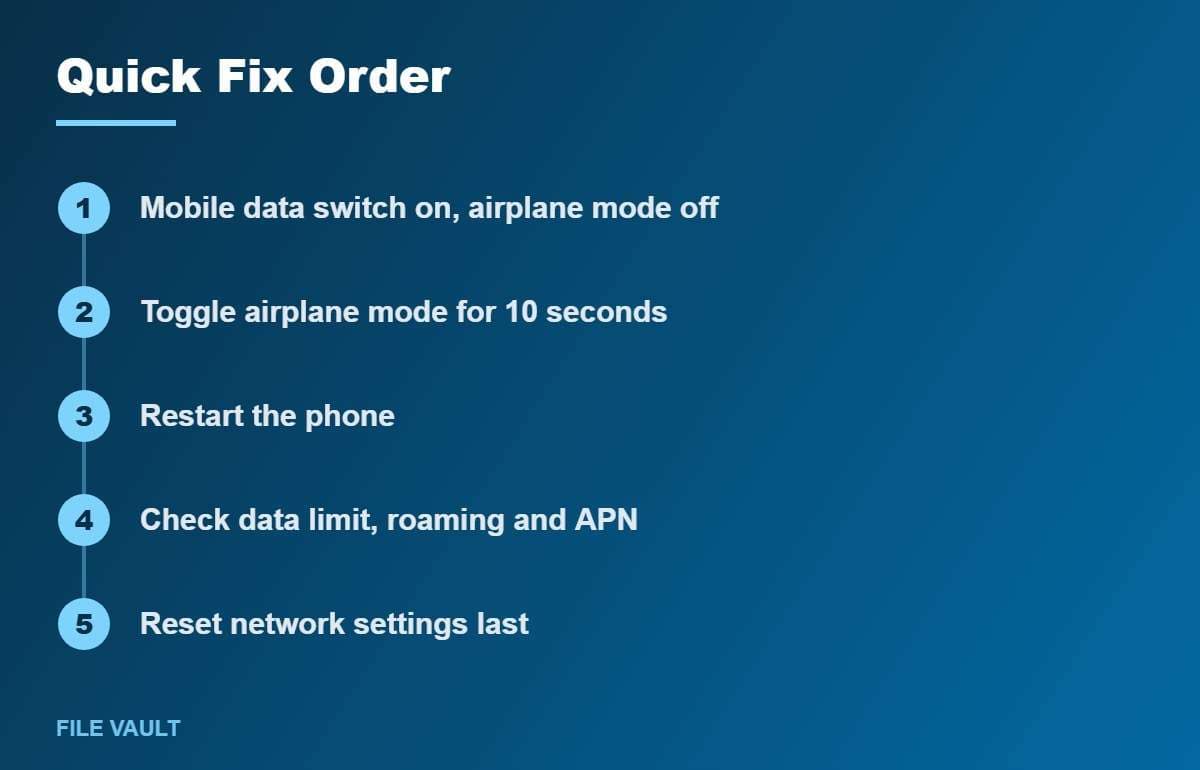
When mobile data is not working, work from the simplest fix to the most drastic: check the data switch, toggle airplane mode, restart, then review limits, roaming, app permissions, APN, SIM and carrier settings. Reset network settings only at the end, and contact your carrier if the phone still cannot connect, because account issues and outages are beyond any setting you can change.