
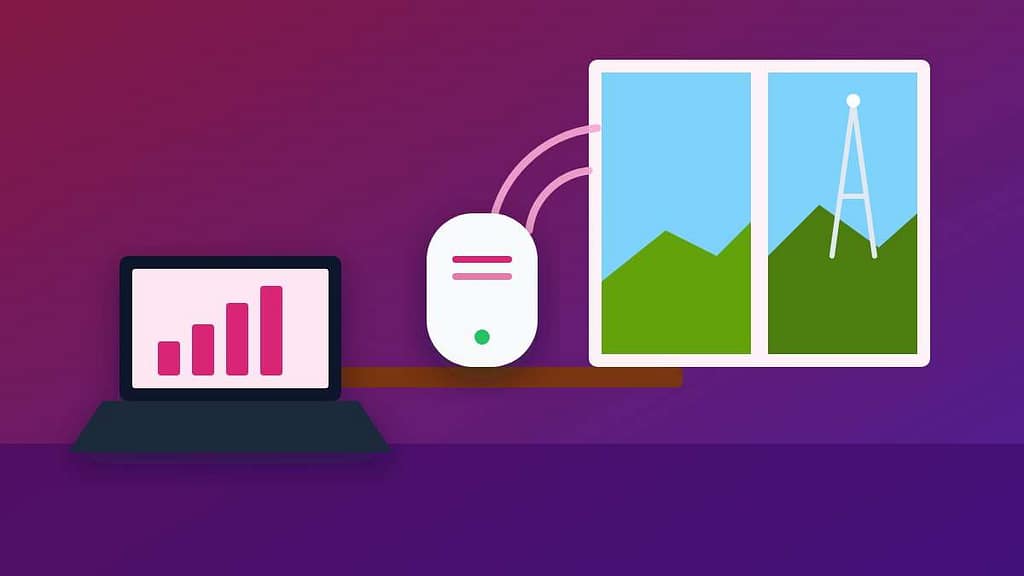
A T-Mobile 5G gateway turns the cellular network into home Wi-Fi, so there is no technician visit and no cable in the wall. That also means the setup is up to you, and the single biggest factor in your speed is where you place the box. A gateway in the wrong corner can be several times slower than the same gateway beside a window.
This guide walks through a complete T-Mobile 5G gateway setup in eight steps: unboxing, placement, the T-Life app, your Wi-Fi name and password, connecting devices, adding your own router or mesh, and fixing the problems people run into most often.
Table of Contents
- What Comes in the T-Mobile 5G Gateway Box
- Step 1: Install the T-Life App
- Step 2: Choose a Temporary Starting Spot
- Step 3: Run the Placement Assistant
- Step 4: Connect to Your Wi-Fi Network
- Step 5: Test Your Speed Properly
- Step 6: Improve Wi-Fi Coverage Across Your Home
- Step 7: Keep Firmware Updated and Restart Smartly
- Step 8: Secure Your Network
- How to Fix Common T-Mobile 5G Gateway Problems
- Understanding Signal Readings on a T-Mobile 5G Gateway
- T-Mobile 5G Gateway vs Cable and Fiber Internet
- T-Mobile 5G Gateway Tips for Gaming and Streaming
- Frequently Asked Questions
What Comes in the T-Mobile 5G Gateway Box
T-Mobile has shipped several gateway models over the years from different manufacturers, but the box usually contains the same items.
- The T-Mobile 5G gateway itself
- A power adapter and cable
- A quick start guide
- A SIM card that is usually already installed in the gateway
Some older models also include an Ethernet cable. Before you plug anything in, find the label on the bottom or back of the gateway. It lists the default Wi-Fi network name and password, which you will need if you do not use the app.
Check your address first
T-Mobile Home Internet is sold per address because each cell site has limited capacity. If you bought a gateway second-hand or are moving, confirm the service is available at the new address. A T-Mobile 5G gateway registered to one address may not work properly somewhere else.
Step 1: Install the T-Life App
T-Mobile now manages Home Internet through the T-Life app, which replaced the separate T-Mobile Internet app. Install it from the Google Play Store or the Apple App Store and sign in with the T-Mobile ID linked to your Home Internet account.
The app is optional, but it makes setup much easier. It can:
- Run the gateway placement assistant and show signal strength
- Display and change your Wi-Fi network name and password
- Show connected devices
- Restart the gateway remotely
- Check for firmware updates
Step 2: Choose a Temporary Starting Spot
Start with the location most likely to get a strong 5G signal, then fine-tune it. Good starting points share a few traits.
- Near a window, but not in direct sunlight, which can overheat the gateway.
- High up, on an upper floor or a tall bookshelf rather than on the floor.
- Toward the nearest cell site, if you know which side of the house faces it.
- Away from obstacles such as microwaves, large metal appliances, mirrors and aquariums.
Plug in the power adapter and let the T-Mobile 5G gateway start up. The first boot can take a few minutes while it connects to the network and checks for updates. Do not unplug it during this time.
Step 3: Run the Placement Assistant
The placement assistant is the most useful tool for a fast T-Mobile 5G gateway. In the T-Life app, open the Home Internet section, choose the gateway placement assistant, and follow the prompts.
- Stand near the gateway with your phone.
- Start the assistant and wait for the signal reading.
- If the result is weak or fair, move the gateway to another window or a higher spot.
- Wait about a minute for the gateway to settle, then test again.
- Repeat until you find the strongest reading.
Many gateways also show signal bars on a small display or a status light. Use those as a quick check, but the app’s reading is more precise. Run the assistant again whenever you move the T-Mobile 5G gateway.

Step 4: Connect to Your Wi-Fi Network
Once the gateway is online, connect your devices using the default network details.
- Open Wi-Fi settings on your phone or computer.
- Select the network name printed on the gateway label.
- Enter the Wi-Fi password from the same label.
- Open a website to confirm the connection works.
If you set up the gateway through the T-Life app, you may already have chosen a custom network name and password during setup. In that case, use those instead of the label.
Change the network name and password
A new name makes your network easier to recognise, and a new password keeps neighbours off it. In T-Life, open the Home Internet network settings, edit the name and password, and save. Every device will disconnect, so reconnect each one with the new details.
Step 5: Test Your Speed Properly
Test right after setup so you have a baseline. For an accurate result:
- Run the test on a device close to the T-Mobile 5G gateway first.
- Pause large downloads, cloud backups and streaming on other devices.
- Test at different times of day, because cellular capacity varies with local demand.
- Compare Wi-Fi with a wired Ethernet result if your computer has a port.
If the wired result is fast but Wi-Fi is slow, the problem is Wi-Fi coverage in your home, not the 5G signal. If both are slow, improve placement before anything else.
Step 6: Improve Wi-Fi Coverage Across Your Home
The best spot for 5G reception is often a window on one side of the house, which can leave far rooms with weak Wi-Fi. You have three good options.
| Option | How it works | Best for |
|---|---|---|
| T-Mobile mesh access points | Extra units that extend the gateway’s Wi-Fi, where offered | Simple setup managed in the same app |
| Your own mesh system | Mesh base connects to a gateway LAN port by Ethernet | Larger homes and more control |
| Your own router | Router WAN port connects to a gateway LAN port | Custom settings, parental controls |
| Wired Ethernet | Run a cable from the gateway to a PC, console or TV | Gaming and 4K streaming |
When you add your own router or mesh, give it a different network name from the T-Mobile 5G gateway at first, so you can tell which one each device joins. If your gateway lets you turn off its Wi-Fi, doing so reduces interference once your own system is working.
Step 7: Keep Firmware Updated and Restart Smartly
T-Mobile pushes firmware updates to the gateway automatically, usually overnight. Leave the gateway powered on so updates can install. After an update, it may restart on its own.
A restart solves many slowdowns because the gateway reconnects and can pick a better cell connection. Restart from the T-Life app, or unplug the power for about 30 seconds and plug it back in. Avoid pressing the reset pinhole unless support asks you to, because a factory reset erases your custom network name and password.
Step 8: Secure Your Network
- Use a strong Wi-Fi password of at least 12 characters instead of a simple word.
- Review connected devices in the app and remove anything you do not recognise by changing the password.
- Keep smart home devices updated, since cameras and plugs are common weak points.
- Protect your T-Mobile ID with a strong password and two-step verification.
Not a T-Mobile Home Internet Customer Yet?
Availability depends on the capacity of the 5G network at your exact address. Check your address on T-Mobile’s official page before ordering a gateway, and compare the current plans and trial terms there.
How to Fix Common T-Mobile 5G Gateway Problems
Most issues fall into a few categories. Work through the matching row before calling support.
| Problem | Likely cause | Fix |
|---|---|---|
| No internet, Wi-Fi connected | Gateway lost the cellular connection | Restart the gateway and check for an outage in the app |
| Slow every evening | Local network congestion | Try a higher or different window; use Ethernet for key devices |
| Fast near the gateway, slow elsewhere | Weak Wi-Fi coverage | Add a mesh access point or your own mesh system |
| Frequent drops | Overheating or poor placement | Move out of direct sun, allow airflow, rerun the placement assistant |
| Some devices cannot connect | Older devices and newer Wi-Fi settings | Restart the device; check the app for compatibility options |
| Game or app needs port forwarding | Shared carrier-grade addressing | Use services that do not need open ports, or ask support about options |
When to contact T-Mobile
Contact support if the signal stays weak in every location, if the gateway lights show an error after a restart, or if speeds drop suddenly and stay low for several days. T-Mobile’s official Home Internet support page lists troubleshooting steps, outage checks and contact options for your T-Mobile 5G gateway.
Understanding Signal Readings on a T-Mobile 5G Gateway
The placement assistant and the gateway display translate technical radio values into simple bars or labels. It helps to know roughly what they mean, so you can decide whether moving the T-Mobile 5G gateway is worth the effort.
| Reading | What it means | What to do |
|---|---|---|
| Excellent or 4-5 bars | Strong, clean connection to the cell site | Leave the gateway where it is |
| Good or 3 bars | Usable signal with some headroom | Try one higher spot to see if it improves |
| Fair or 2 bars | Speeds will vary noticeably | Test other windows and upper floors |
| Poor or 1 bar | Weak signal, frequent slowdowns likely | Move the gateway and contact support if nothing helps |
Behind those labels, the app looks at signal strength and signal quality. Strength tells you how loud the signal is; quality tells you how much noise and interference comes with it. A spot with slightly weaker strength but better quality can deliver faster speeds, which is why testing actual speed matters more than chasing the maximum number of bars.
Does the band matter?
Your T-Mobile 5G gateway can connect over different 5G and 4G LTE bands. Lower bands travel farther and pass through walls more easily, while mid-band 5G is much faster but needs a clearer path. You cannot usually pick the band yourself, but better placement lets the gateway lock onto faster mid-band 5G more often.
T-Mobile 5G Gateway vs Cable and Fiber Internet
Fixed wireless internet from a T-Mobile 5G gateway has clear strengths and a few trade-offs compared with wired connections. Knowing them helps you set realistic expectations.
| T-Mobile 5G gateway | Cable or fiber | |
|---|---|---|
| Installation | Self-setup in minutes | Often needs a technician visit |
| Speed consistency | Varies with signal and local demand | Usually steady |
| Upload speed | Lower than download | Fiber is often symmetrical |
| Moving house | Update your address and set up again | New installation required |
| Port forwarding | Usually not available | Usually available |
For browsing, streaming, video calls and most online gaming, a well-placed T-Mobile 5G gateway is more than enough. People who host game servers or need guaranteed upload speeds for large files may still prefer fiber where it is available.
T-Mobile 5G Gateway Tips for Gaming and Streaming
- Wire your console or streaming box with Ethernet when possible. It removes Wi-Fi as a source of lag.
- Use the 5 GHz or 6 GHz band for nearby devices if your gateway and device support it; 2.4 GHz reaches farther but is slower.
- Schedule big downloads for late night, when the network is usually less busy.
- Keep the gateway away from the TV cabinet, which can block both 5G and Wi-Fi signals.
If you also use your phone as a backup connection, our guide to setting up a mobile hotspot shows how to share data safely. Weak cellular signal indoors can also affect calls, and our cell signal booster setup guide explains the rules for boosters.
Bonus PDF: 5G Gateway Placement Planner
Test every spot in your home and keep the one with the best real speed. To download it, try one free sponsored app from the list you will see (usually a couple of minutes). Everything in this guide stays free without it.
Frequently Asked Questions
Where is the Wi-Fi password for my T-Mobile 5G gateway?
The default network name and Wi-Fi password are printed on the label on the gateway, usually on the bottom or back. You can view and change them later in the T-Life app.
Can I use my own router with a T-Mobile 5G gateway?
Yes. Connect your router’s WAN port to a LAN port on the gateway with an Ethernet cable. Turning off the gateway’s own Wi-Fi, if your model allows it, reduces interference between the two networks.
Why is my T-Mobile 5G gateway slow at night?
Home Internet shares capacity with nearby mobile users, so evening congestion can lower speeds. Better placement often helps, and restarting the gateway can move it to a stronger connection.
Can I move my T-Mobile 5G gateway to another address?
Home Internet service is registered to your service address, and using the gateway at a different location can stop it from working. Contact T-Mobile before moving to update your address.
Does the T-Mobile 5G gateway support port forwarding?
Most T-Mobile Home Internet connections use shared carrier-grade addressing, so traditional port forwarding usually is not available. Gaming and remote access generally still work through normal outbound connections.
A fast T-Mobile 5G gateway setup comes down to placement: start near a window on an upper floor, use the T-Life placement assistant, and test before settling on a spot. Add Ethernet or mesh for distant rooms, keep the gateway updated, and restart it when speeds dip. With those basics in place, most homes get reliable internet without a single cable installation.