
Your call history holds more than you might think: the number of the plumber who called last week, proof of when you phoned your bank, or the last calls from someone important. It is also easy to lose during a phone reset, an upgrade, or a switch between Android and iPhone.
This guide shows six easy ways to view, back up, restore and transfer call history on Android and iPhone, how to get older records from your carrier, and how to fix a call log that suddenly looks empty.
Table of Contents
- Method 1: View Your Call History on Android and iPhone
- Method 2: Back Up Call History on Android with Google
- Method 3: Back Up Call History on Samsung
- Method 4: Back Up Call History on iPhone with iCloud
- Method 5: Restore Call History on a New or Reset Phone
- Method 6: Get Older Call Records from Your Carrier
- Export Call History to a File
- Fix Missing or Incomplete Call History
- Calls on Laptops, Watches and Messaging Apps
- Tips for Work, Expenses and Disputes
- When Backups Fail
- Search and Filter Your Recent Calls Faster
- Keep Your Call History Private
- Frequently Asked Questions
Method 1: View Your Call History on Android and iPhone
Android
- Open the Phone app.
- Tap Recents or Call history, depending on your phone.
- Tap a call to see details such as time, duration and whether it was incoming, outgoing or missed.
- On Google’s Phone app, tap the menu and choose Call history for the full list with filters.
Samsung Galaxy
Open the Phone app and tap Recents. Tap a number to see all calls with that contact, or use the menu to filter missed, incoming and outgoing calls.
iPhone
- Open the Phone app.
- Tap Recents.
- Tap Missed to filter missed calls.
- Tap the info button next to an entry to see its date, time and duration.
Phones keep a limited recent list and drop the oldest entries over time, so do not rely on the phone alone as a long-term archive of your call history.
Method 2: Back Up Call History on Android with Google
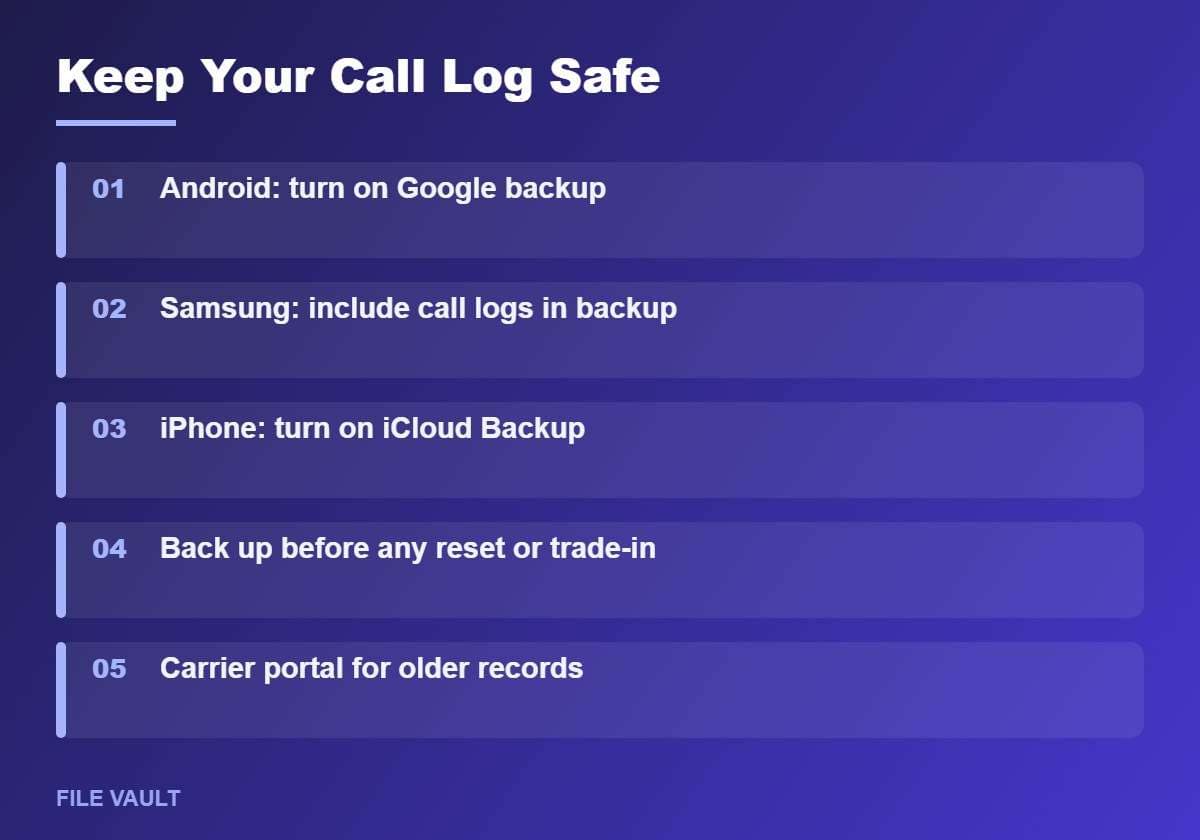
Google’s official Android backup includes call history, along with contacts, SMS and MMS messages, device settings, and apps and app data.
- Open Settings, then Google, then All services, then Backup and restore, then Backup. On some phones, the path is Settings, then System, then Backup.
- Turn on Backup by Google One or Backup by Google.
- Check that Device data is included.
- Tap Back up now while connected to Wi-Fi.
Google notes that backups can take up to 24 hours to complete and use your Google Account storage, which starts with 15 GB at no charge.
Method 3: Back Up Call History on Samsung
Samsung phones can use Google backup, Samsung’s own cloud backup, or Smart Switch on a computer.
- Samsung cloud backup: open Settings, tap your Samsung account, choose the backup option, and make sure call logs are selected before backing up.
- Smart Switch for PC or Mac: connect the phone with a cable, open Smart Switch, choose Backup, and include call logs and messages.
- External storage: Smart Switch on the phone can also save a backup to a USB drive or SD card on supported models.
Exact menu names vary with One UI versions, so look for items called call logs or call history when selecting what to include.
Method 4: Back Up Call History on iPhone with iCloud
iCloud Backup includes your iPhone call history automatically.
- Open Settings and tap your name.
- Tap iCloud, then iCloud Backup.
- Turn on Back Up This iPhone.
- Tap Back Up Now while connected to Wi-Fi.
You can also back up to a computer. On a Mac, use Finder; on Windows, use the Apple Devices app. Choose to encrypt the local backup so sensitive data, such as saved passwords and health data, is included and protected.
Method 5: Restore Call History on a New or Reset Phone
Restoring call history usually happens during phone setup, not afterwards.
Android
- Start setting up the new phone, or factory reset the phone you want to restore.
- Sign in with the same Google Account you used for the backup.
- When offered, choose to restore from a backup and select the right device.
- Make sure call history or device data is selected, then continue setup.
iPhone
- During setup, choose Restore from iCloud Backup on the Transfer Your Apps & Data screen.
- Sign in and choose the most recent backup.
- Keep the iPhone on Wi-Fi and power until the restore finishes.
Moving directly from an old iPhone with Quick Start also brings your call history along with other data.
Switching between Android and iPhone
Cross-platform transfers are the most likely to lose your list of past calls. Apple’s Move to iOS app and Android’s switching tools focus on contacts, messages, photos and accounts; call logs may not be included. If your call history matters, keep the old phone until you have exported or noted what you need.
Running Out of Backup Space?
Phone backups, including call history, messages and photos, count toward your cloud storage. If backups keep failing because storage is full, compare the official Google One plans for more space.
Method 6: Get Older Call Records from Your Carrier
When the phone’s own list is gone, your carrier is often the best source. Carriers typically show call details for recent billing periods in your online account.
- Sign in to your carrier’s website or app.
- Open Usage, Usage details or your bill details.
- Select the billing period and the line.
- Download or print the call records if an export option is available.
Carrier records usually show the number, date, time and duration, but not contact names. Older periods may require a request to customer support, and prepaid accounts may show less detail. Records for another person’s line are private, and carriers will only release them to the account holder or with proper legal authority.
Export Call History to a File
Sometimes you need your call history in a spreadsheet, for example for work expenses or a dispute.
- Android: reputable call log backup apps on Google Play can export entries to CSV files. Check the app’s Data safety section, because call logs are sensitive.
- iPhone: Apple does not offer a built-in export. Use carrier usage records, or screenshots of the Recents details for a small number of calls.
- Carrier portal: a downloaded bill or usage file is often the most reliable record.
Fix Missing or Incomplete Call History
| Problem | Likely cause | Fix |
|---|---|---|
| Recents list suddenly empty | Phone app data cleared or app updated | Restart; check if a different Phone app is now the default |
| Older calls disappeared | Phone keeps only a recent list | Use carrier usage records for older dates |
| History missing on new phone | Not included in the backup or restore skipped | Restore again during setup from the right backup |
| Calls from one app missing | WhatsApp, FaceTime or other apps keep their own logs | Check call history inside that app |
| Calls show numbers, not names | Contacts not synced yet | Turn on contacts sync with your Google Account or iCloud |
| Wi-Fi calls missing from carrier records | Different record type | Ask the carrier how Wi-Fi Calling is listed |
Calls on Laptops, Watches and Messaging Apps
Many calls never touch the regular Phone app. Each service keeps its own records, so check the right place.
| Where you called from | Where the record lives | Backed up by |
|---|---|---|
| WhatsApp, Signal, Telegram | Calls tab inside the app | The app’s own chat backup, if enabled |
| FaceTime | FaceTime app and Phone Recents on iPhone | iCloud Backup |
| Google Voice | Calls tab in Google Voice | Stored in your Google Voice account |
| Windows Phone Link | Calls section in Phone Link | Comes from the connected phone |
| Mac or iPad via iPhone | FaceTime app on that device | Relies on the iPhone’s records |
| Smartwatch | Watch Phone app | Synced from the paired phone |
For messaging apps, open their settings and turn on chat backup. WhatsApp, for example, backs up to Google Drive on Android and iCloud on iPhone, and the calls list comes back when you restore that backup.
Tips for Work, Expenses and Disputes
- Use the carrier bill as the official record. It carries the carrier’s name and billing period, which accountants and companies usually accept.
- Save monthly statements as PDFs in a dedicated folder if you claim phone costs as business expenses.
- Note the context immediately. After an important call with a bank, insurer or airline, write down the date, time, agent name and reference number.
- Screenshot details of key calls before switching phones, since screenshots survive any transfer method.
- Consider a separate work line on a dual SIM phone, which keeps personal and business calls apart on the bill.
When Backups Fail
A backup that silently stopped weeks ago is worse than none, because you only discover it after a reset. Check the date of your last successful backup every few months.
- Storage full: free space by deleting old device backups you no longer need, or move large photo libraries elsewhere. Upgrading storage is the other option.
- Backup never completes: keep the phone on Wi-Fi and charging overnight, since both Android and iPhone prefer those conditions.
- Wrong account: confirm the backup is going to the Google Account or Apple Account you will actually use on your next phone.
- Work or school profile: managed phones may block personal backups; ask your IT team what is saved.
Checklist before a factory reset or trade-in
- Run a manual backup and wait for it to finish.
- Check the last backup time in settings.
- Screenshot any calls you might need as evidence.
- Download your latest carrier statement.
- Only then sign out of your accounts and reset the phone.
Search and Filter Your Recent Calls Faster
Long lists are easier to handle when you use the built-in tools.
- Tap a contact’s name to see every recent call with that person grouped together.
- Use the missed calls filter to return calls you did not answer.
- Search by number in the Phone app on Android, which often matches recent entries as well as contacts.
- Block spam numbers directly from the call details screen so they stop filling your list.
- Turn on caller ID and spam protection in the Phone app settings, available on Pixel, Samsung and iPhone through carrier or built-in features.
Keep Your Call History Private
- Lock your phone with a strong PIN, since anyone holding it can read Recents.
- Review app permissions and remove call log access from apps that do not need it.
- Protect cloud accounts with two-step verification, because backups contain call history.
- Delete individual entries by swiping or long-pressing them in Recents if needed.
For official details, see Google’s guide to backing up or restoring data on Android, which lists call history among the backed-up items.
Locked out before you could back up? Read our guides for a forgotten Samsung PIN and a forgotten iPhone passcode to understand what each recovery method means for your data.
Bonus PDF: Phone Call Log Backup Checklist
Back up, restore and keep records of your calls before any reset or upgrade. To download it, try one free sponsored app from the list you will see (usually a couple of minutes). Everything in this guide stays free without it.
Frequently Asked Questions
How far back does call history go on my phone?
It depends on the phone and app. Phones keep a limited recent list and remove older entries over time. For longer records, check your carrier account, which usually shows call details for recent billing periods.
Can I recover deleted call history?
Only if it was included in a backup made before you deleted it. Restoring usually happens during phone setup, so it can replace current data. Your carrier’s usage records are another option for dates and numbers.
Does iCloud back up call history?
Yes. iCloud Backup includes call history on iPhone. It is restored when you set up a phone from that iCloud backup.
Does Google back up call history on Android?
Yes. Google’s Android backup includes call history along with contacts, SMS messages and device settings, and it can be restored when setting up a phone.
Why is my call history missing after switching phones?
The history may not have been in the backup you restored, or you skipped the restore step. Some transfers between Android and iPhone do not move call logs at all.
To keep your call history safe, turn on Google backup or iCloud Backup today, run a manual backup before any reset or trade-in, and restore from that backup during setup on your next phone. When the phone’s list is not enough, your carrier account is the most reliable record of older calls.